Can't Remember Windows 11 Password? The Bare-Metal USB Bypass
What do I do if I can't remember my Windows 11 password?
If you can't remember your Windows 11 password for a local account, you can bypass the lock screen using a standard Windows installation USB. By booting from the USB and accessing the terminal (Shift + F10), you can temporarily replace the Windows Accessibility tool with the Command Prompt. This allows you to open a terminal directly on the lock screen and reset your password using the net user command, without losing any personal files.
If you are locked out of your workstation, you do not need questionable third-party software to regain access. Windows contains native recovery environments that, when utilized correctly, allow administrators to bypass a forgotten local account password in minutes.
Below is the exact sysadmin execution to regain access, followed by the protocol to secure your machine against this very exploit.
Note: This guide is for local accounts only. If you use a Microsoft Account to log in, you must reset it via Microsoft's online recovery portal.
Step 1: Boot into the Recovery Terminal
You will need a standard Windows 10 or Windows 11 installation USB.
- Insert the USB and boot your computer from it.
- When the initial Windows Setup screen appears, do not click "Next."
- Press
Shift + F10on your keyboard to launch the Command Prompt.
Step 2: Locate Your OS Drive & Assign a Letter
The recovery environment assigns drive letters differently than your standard desktop. You need to find which letter represents your primary Windows installation.
Type the following commands:
diskpart
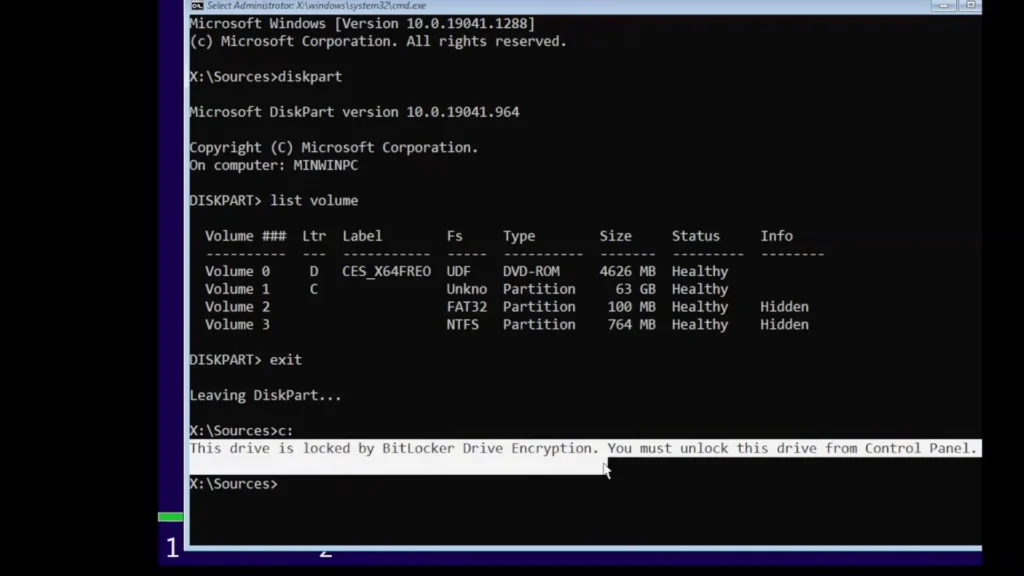
list volume
Look for your primary OS drive. If your Windows volume does not have a letter assigned, you must assign one manually (for example, assigning the letter C). Replace the volume number below with your actual Windows volume:
select volume 1
assign letter=C
exit
Step 3: Hijack the Accessibility App (The Exploit)
First, access your newly assigned drive letter, then navigate to the System32 folder. Here, we will back up the native Accessibility tool (utilman.exe) and replace it with the Command Prompt (cmd.exe).
Copy and paste these exact commands, pressing Enter after each:
C:
cd Windows\System32
ren utilman.exe utilman.old
copy cmd.exe utilman.exe
Once completed, close the terminal, cancel the Windows Setup, and let the computer restart normally.
Step 4: Reset the Password
When you arrive back at your normal Windows 11 lock screen:
- Click the Accessibility icon in the bottom right corner.
- Because of our exploit, a system-level Command Prompt will open instead of the accessibility menu.
- Type the following command to clear the password entirely (replace
YourUsernamewith your actual account name):
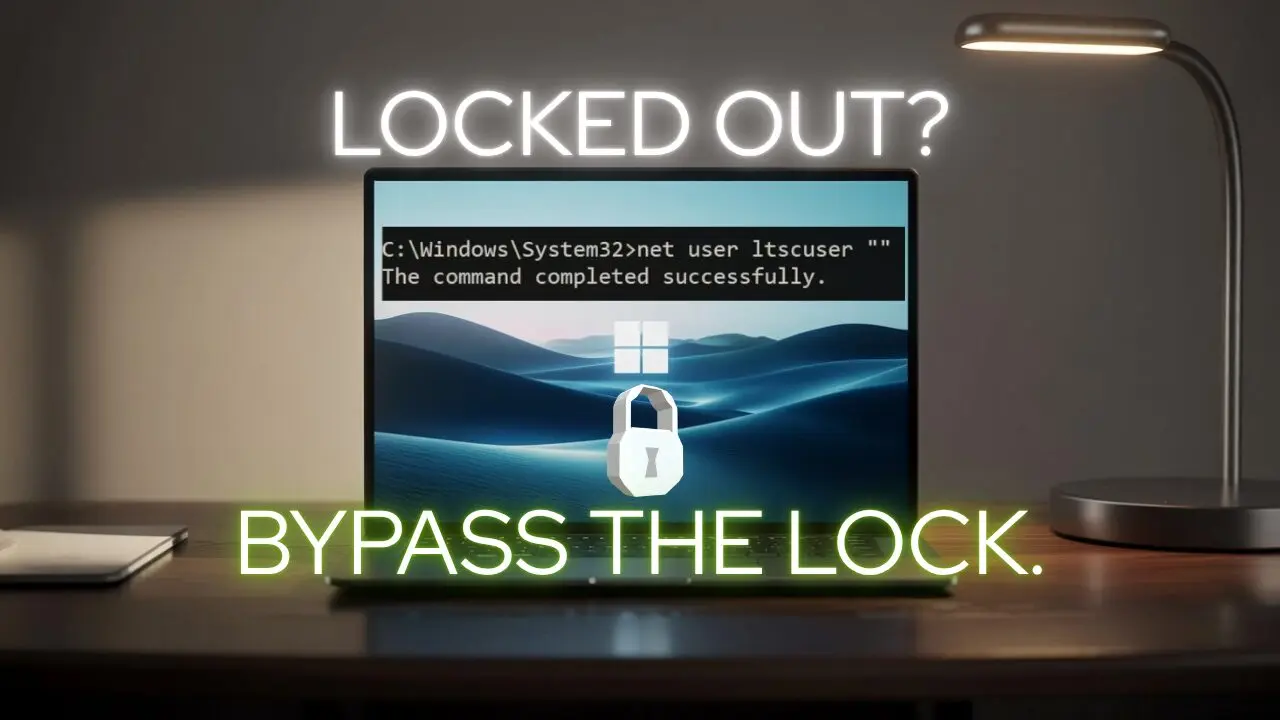
net user YourUsername ""Press Enter. You can now log into Windows with a blank password.
Step 5: Sysadmin Cleanup & Restoration
Leaving the system like this is a massive security vulnerability. To restore the original Accessibility menu and clean up your tracks:
- Boot from the USB again and press
Shift + F10. - Navigate back to
System32. - Run these commands to delete the hijacked file and restore the original:
C:
cd Windows\System32
del utilman.exe
ren utilman.old utilman.exe
The Ultimate Defense: Securing Your Hardware
Creating a local account is the best approach for online privacy. However, if online privacy makes you avoid Microsoft accounts and Windows Hello, relying solely on a local password leaves your physical hardware vulnerable. If a forgotten password can be bypassed this easily with a simple USB drive, an attacker could access your saved browser credit cards and data in minutes.
💡 Pro Tip: Secure Your Data First
Always run a complete system backup before modifying core System32 files or enabling BitLocker encryption to prevent permanent data loss if a mistake occurs.
Enable BitLocker Encryption:
To truly protect your computer from this easy bypass, BitLocker encryption is the best option. Launch the BitLocker manager, select your main disk, and save the encryption key to a safe external USB. By enabling BitLocker, the drive is mathematically locked before the operating system even loads. If an attacker tries the Shift + F10 trick, they will find the drive completely locked.
Upgrade Your Infrastructure
If you require robust, enterprise-grade operating systems that support advanced administration and telemetry control, explore our priority access to Windows 11 IoT Enterprise LTSC 2024, LTSC 2021, and Windows Server 2025.
View Enterprise Architectures